Setting up a Database
You will need a Google account to do it.
Click here if you don't have a Google account.
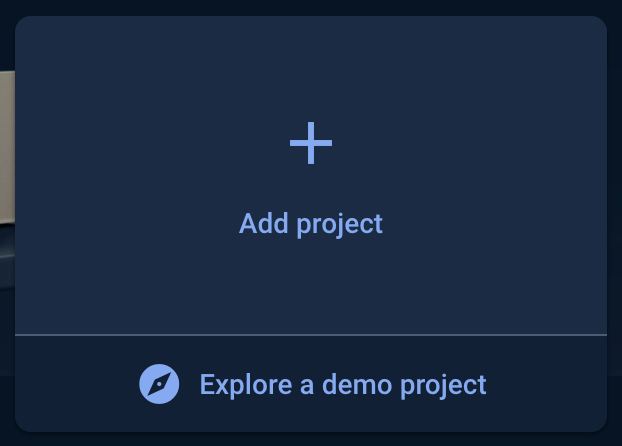
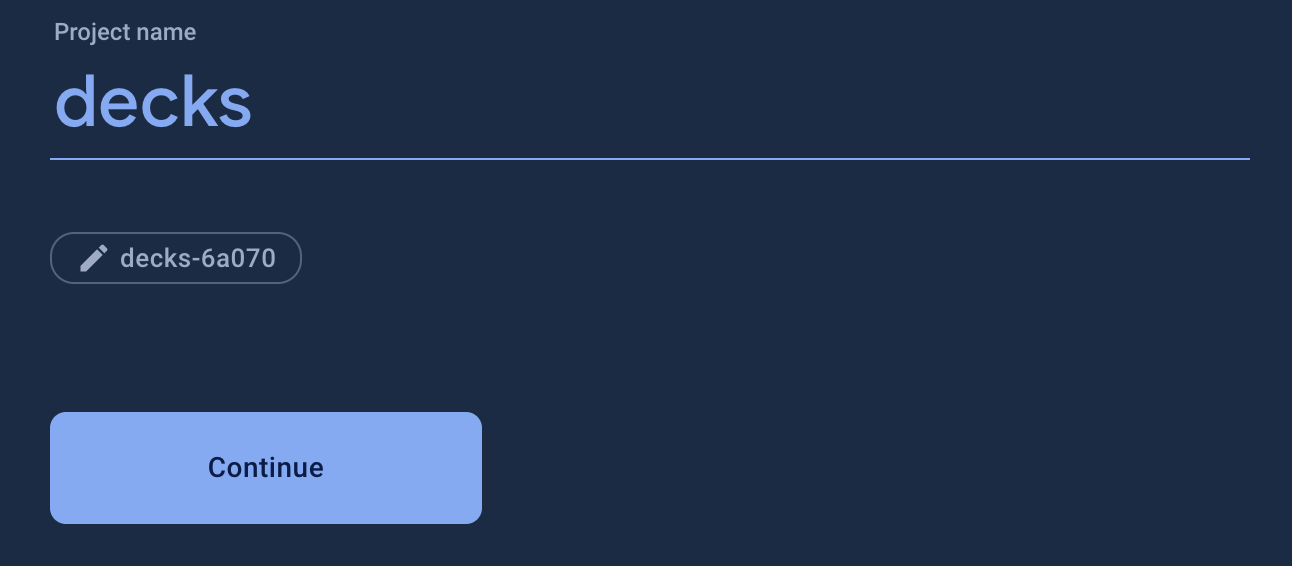
You'll need to enter a project name. Write whatever you would like.
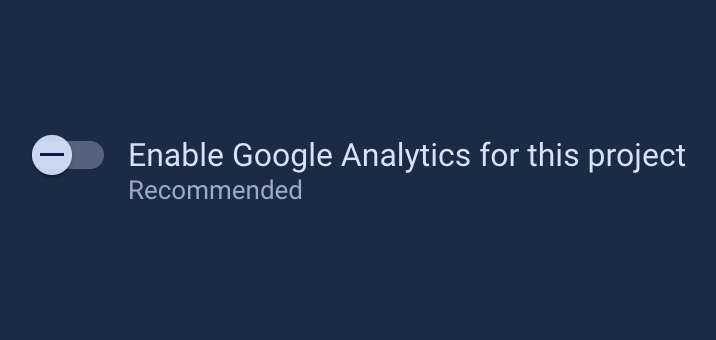
Disable Google Analytics for your project.
Click on Create project.
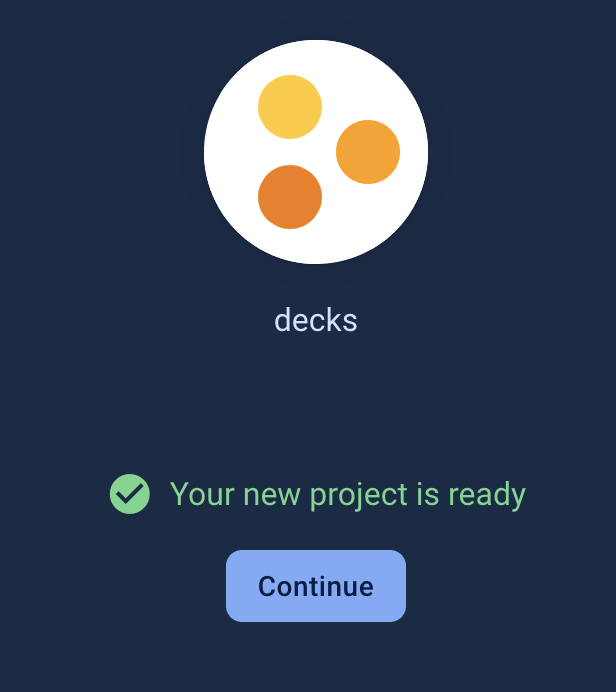
Wait until the setup finishes and click on Continue.
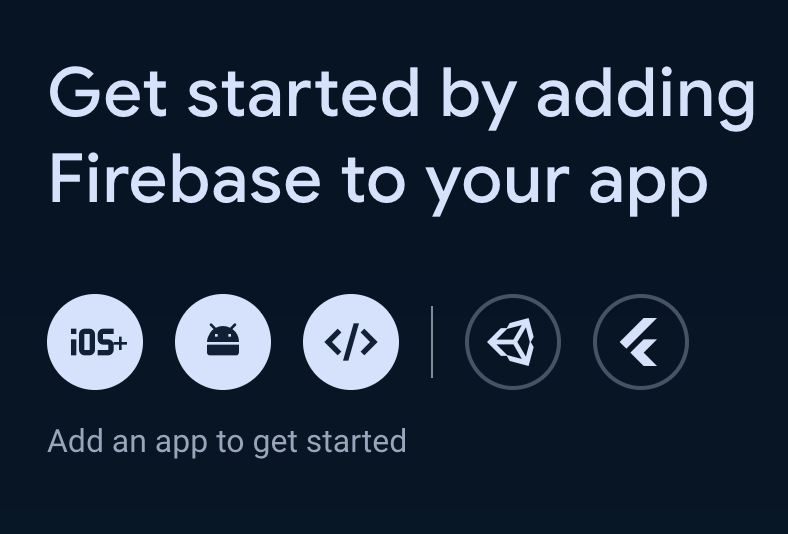
Click on the </> button
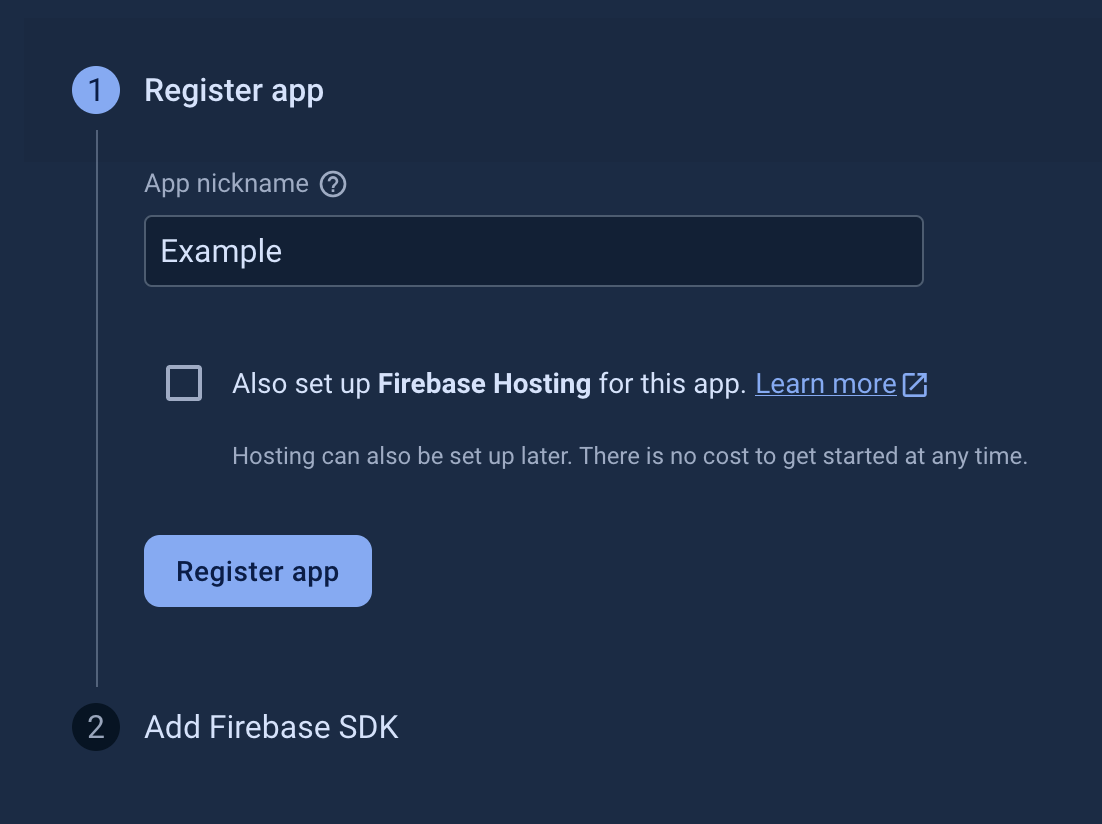
Add an app name. It can be whatever you want. Then click on Register App
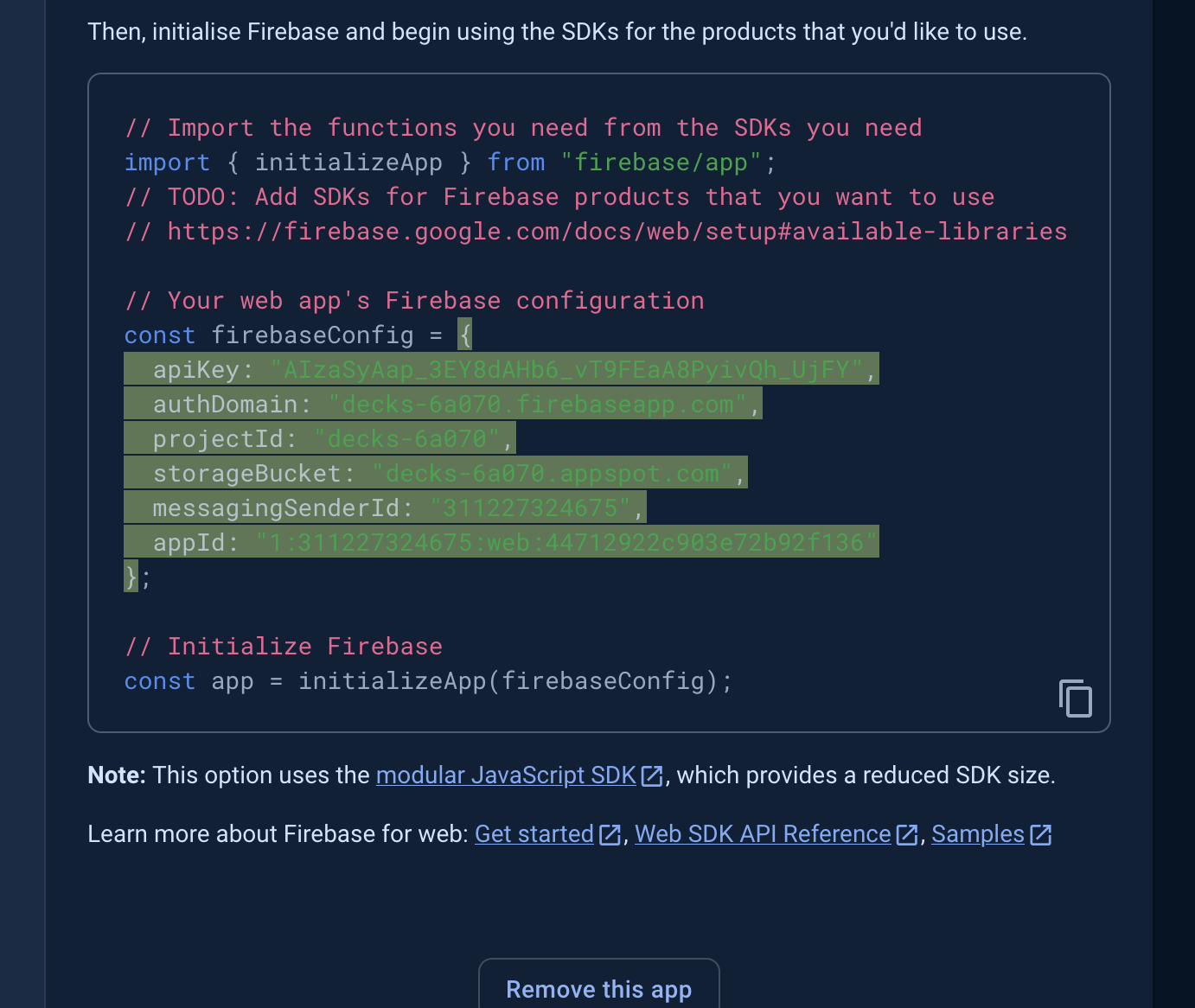
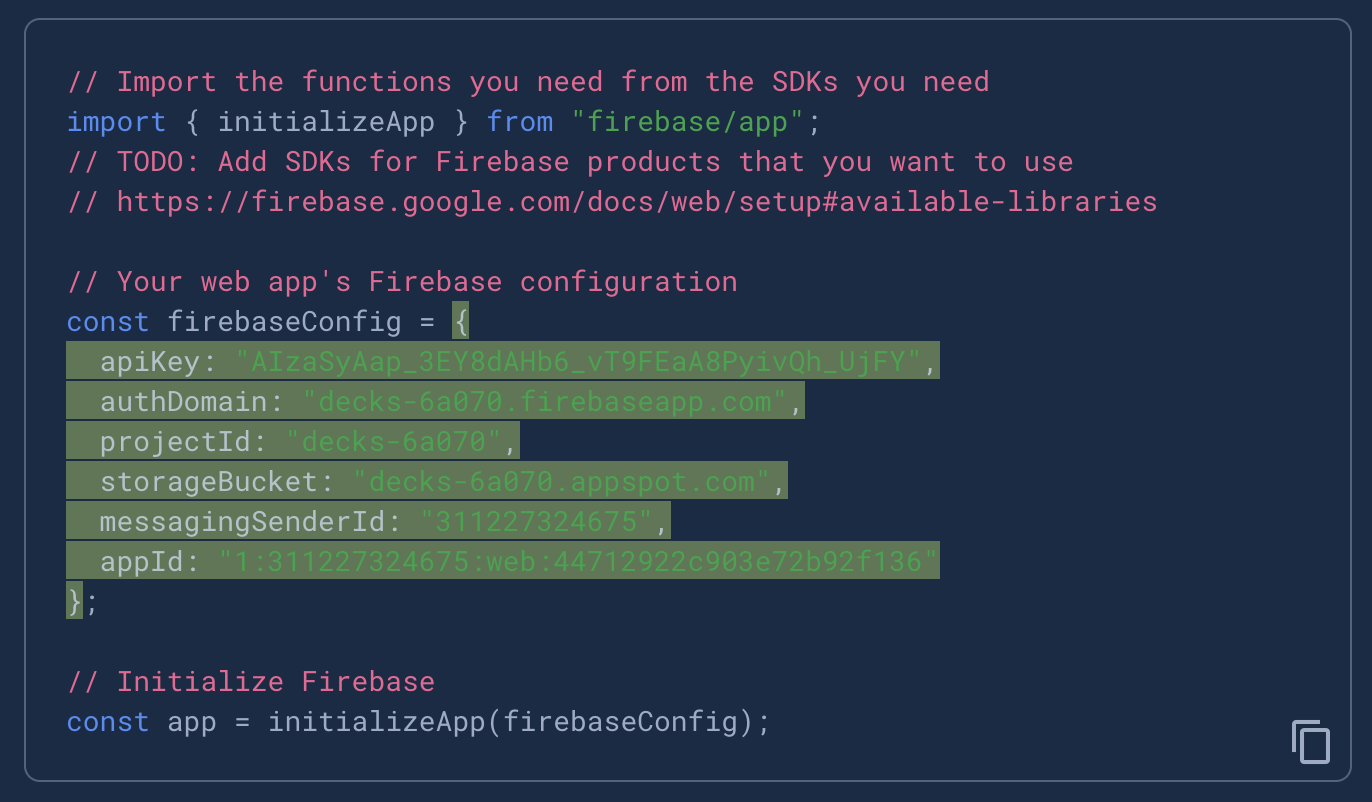
You'll see a code block. Copy the config as shown on the image.
Make sure to not copy the ; at the end of the config.
Please paste this somewhere, and edit what you pasted to have a " around each key: It should look like {"apiKey":..., "authDomain":...,...} instead of {apiKey:..., authDomain:...,...}
Click on Continue to the console.
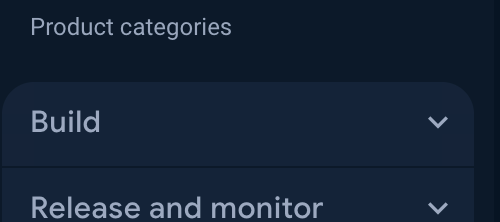
Click on Build.
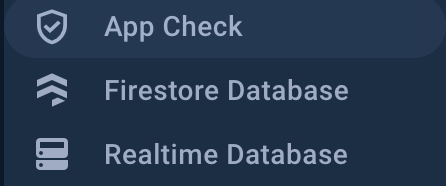
Click on Firestore Database
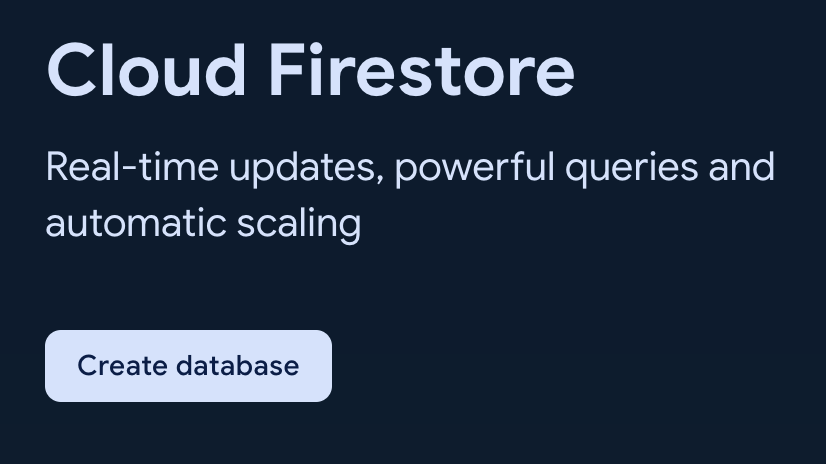
Click on Create database
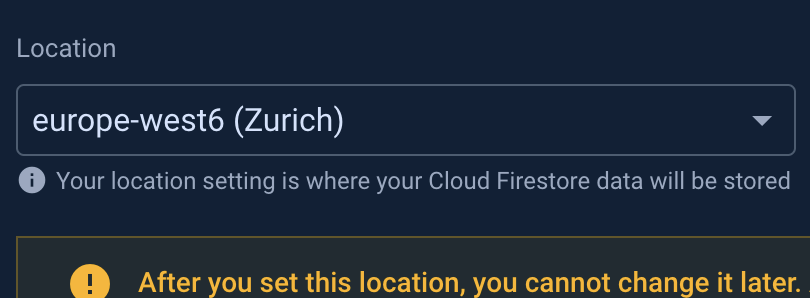
Choose the nearest location to you and then click Next.
Click on Create
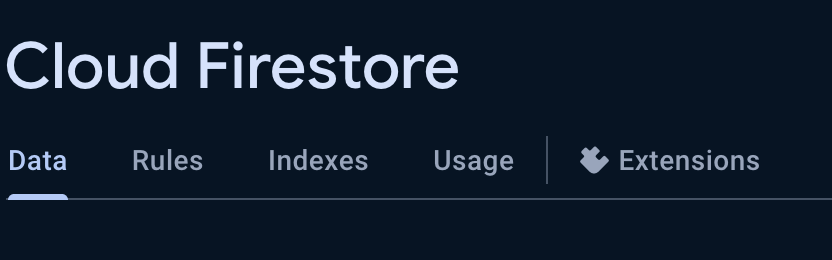
Click on Rules
Change the text as shown on the image.
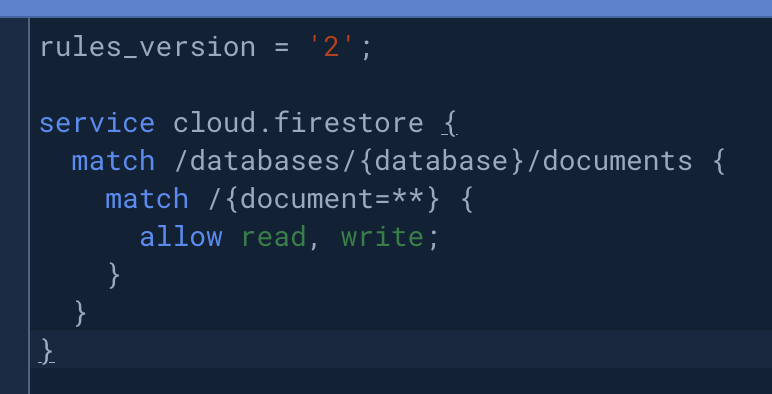
Click on Publish
Click on Build and then Storage
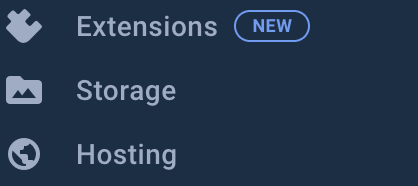
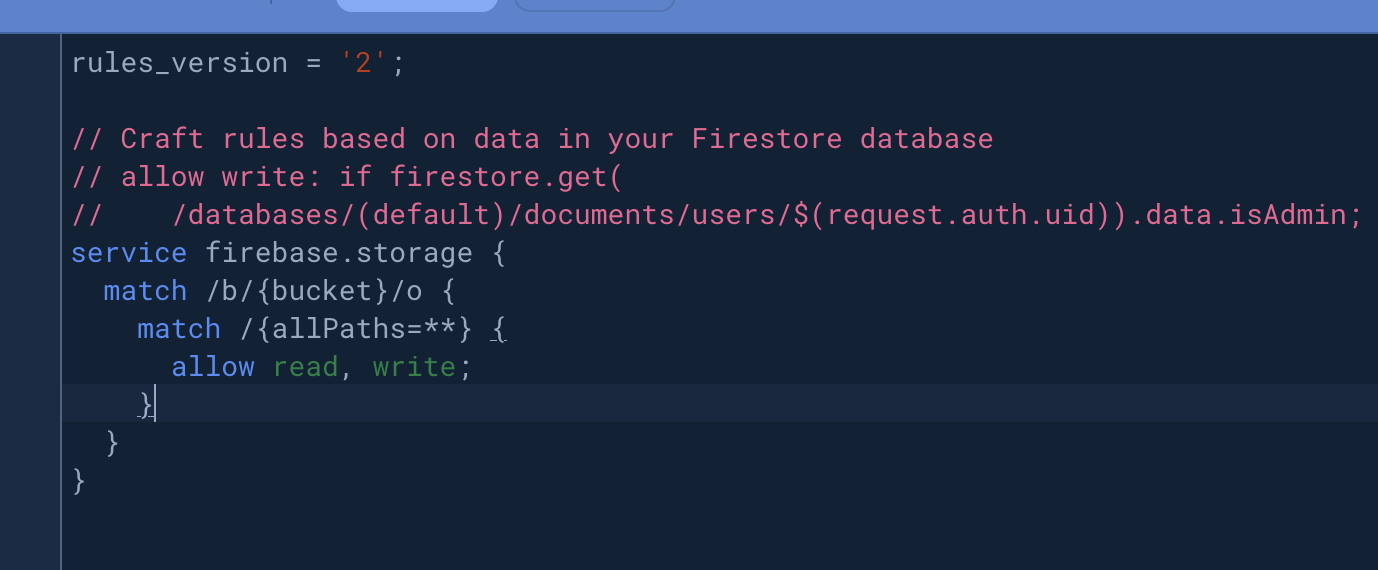
Click on Rules
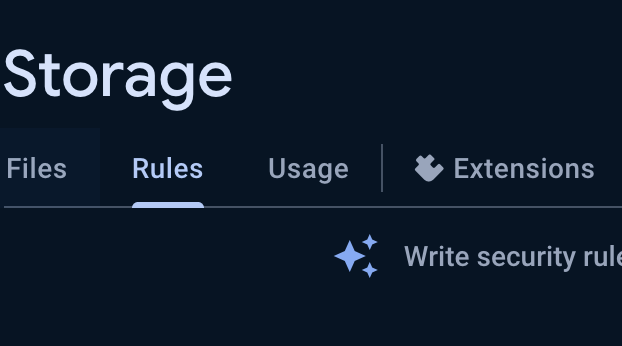
Change the text as shown on the image.
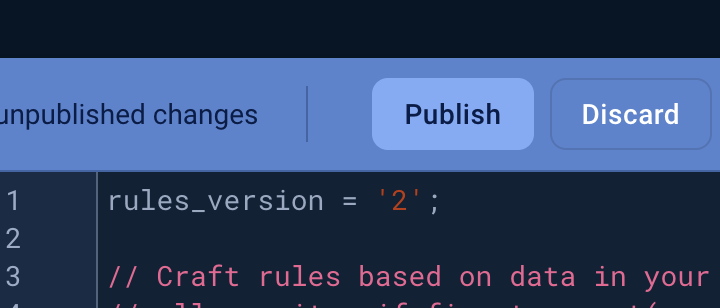
Click on Publish
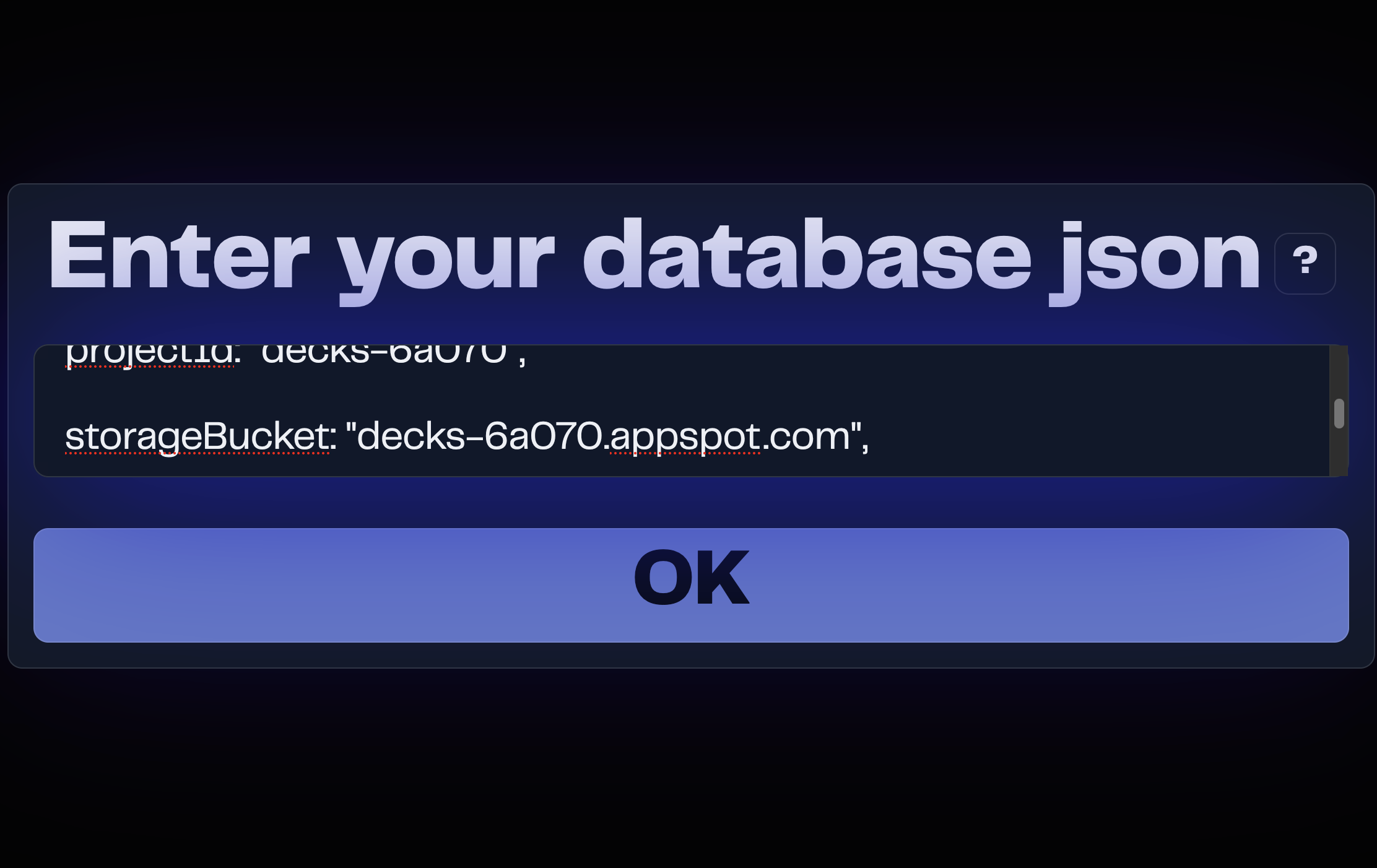
If you haven't copied the JSON at step 8, follow the following steps:
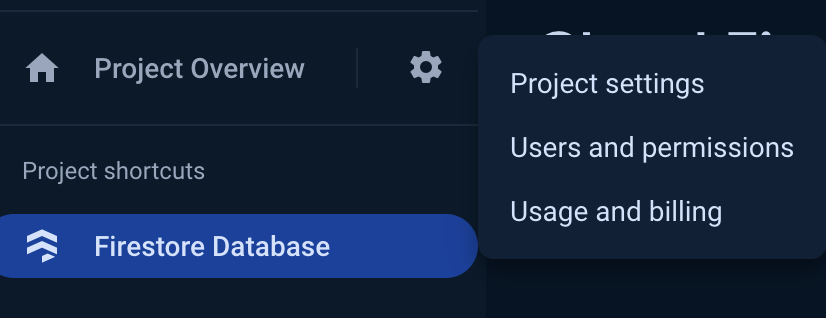
Click on the gear icon and then on Project settings
Scroll down and then copy the config as seen on the image.
Make sure to not copy the ; at the end of the config.
Please paste this somewhere, and edit what you pasted to have a " around each key: It should look like {"apiKey":..., "authDomain":...,...} instead of {apiKey:..., authDomain:...,...}